

A WhatsApp QR code opens a chat with you when someone scans it with their phone camera. Customers don't have to save your number or type it correctly. Sellers print it on packaging, shop counters, visiting cards and flyers. This guide covers the two kinds of WhatsApp QR code, how to make each one for free, how to scan one, and how to see how many people scanned yours.
Two kinds of WhatsApp QR code
- The QR code inside WhatsApp. Every WhatsApp account has one. Scanning it lets the other person add you as a contact. You can't add a ready-made message to it, and you can't see how many people scanned it.
- A QR code for a WhatsApp chat link. This is a normal QR code that opens a
wa.melink to your number, with an optional ready-made message such as "I want to order". You make it with a QR generator, and you can track scans if you use a dynamic code.
For a business, the second kind usually works better, because the customer lands straight in a chat with a message already typed.
How to find your QR code inside WhatsApp
- Open WhatsApp and go to Settings.
- Tap the QR code icon next to your name.
- Tap Share to send it, or take a screenshot to print it.
WhatsApp describes these steps in How to view your WhatsApp QR code. It also advises sharing your code only with people you trust, since anyone who has it can add you. In WhatsApp Business, the QR code sits next to your business name in Settings, and WhatsApp explains printing it in How to print your QR code for WhatsApp Business.
How to make a WhatsApp chat QR code for free
The quickest way is our free WhatsApp link generator. It doesn't need an account:
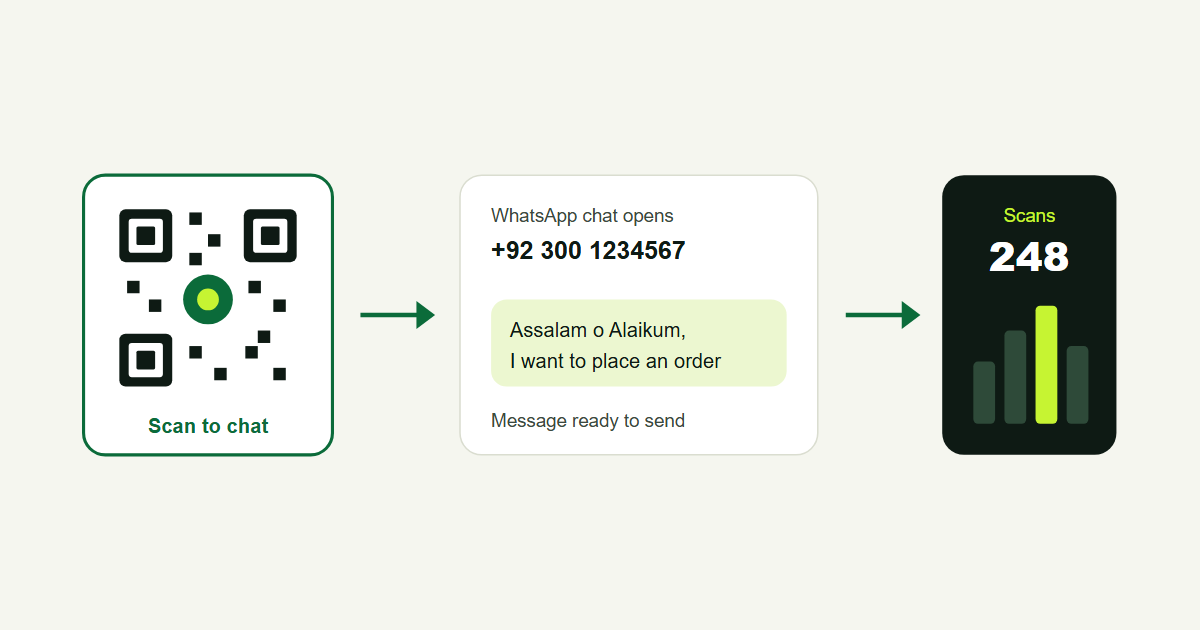
- Enter your WhatsApp number in international format. For Pakistan, 0300 1234567 becomes
923001234567. - Add an optional message, for example "Assalam o Alaikum, I want to place an order".
- The generator gives you a short link and a QR code. Download the QR code and test it with your phone before printing.
If you want to understand the link behind the code, our guide on how to create a WhatsApp link explains the wa.me format and group links.
Make a trackable WhatsApp QR code
A free Lnky account lets you create dynamic WhatsApp QR codes. The code points to a short link that forwards to your WhatsApp chat, which gives you two things a plain code can't:
- Scan stats. You see how many people scanned the code and their country, device and browser, so you can tell whether the flyer or the packaging brings more chats.
- Edit without reprinting. If you change your number or want a different message, update the code in your dashboard. The printed code stays the same.
To make one, sign up, open QR Codes in your dashboard, create a new code and choose WhatsApp. Enter the number and message, pick colours or add your logo, and download it. The free plan includes 10 QR codes.
How to scan a WhatsApp QR code
- With the phone camera: open the Camera app or Google Lens and point it at the code. Tap the link that appears and WhatsApp opens the chat.
- Inside WhatsApp: go to Settings, tap the QR code icon and choose Scan. This is the way to scan someone's personal WhatsApp QR code and add them as a contact.
The QR code shown on WhatsApp Web, when you link a computer, is a different thing. It's for logging in to your own account, so never scan someone else's login code or send yours to anyone.
Where to use a WhatsApp QR code
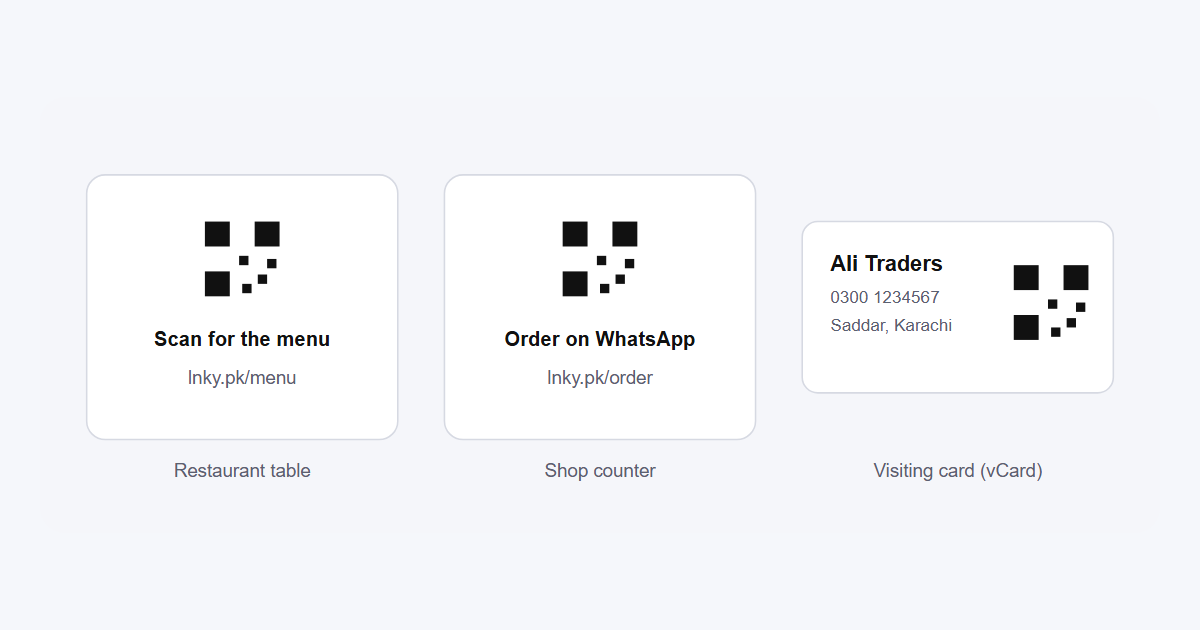
- Product packaging and parcels: "Scan to reorder" brings repeat customers back to your chat.
- Shop counters and stalls: customers who browse but don't buy can message you later.
- Visiting cards and flyers: one scan instead of typing an 11-digit number.
- Restaurant tables: "Scan to order on WhatsApp" for takeaway and delivery orders.
- Instagram and Facebook posts: people viewing on a computer can scan the code with their phone.
Add a short line under the code, like "Scan to chat on WhatsApp", and print your number underneath too, for anyone whose camera won't scan.
Printing tips
- Keep the code at least 3 cm wide on cards and packaging, and larger on posters.
- Use dark colours on a light background, and leave a clear margin around the code.
- A logo in the middle is fine, but keep it small and scan-test the code after adding it.
- Test the printed proof with two or three phones before you print hundreds.
Frequently asked questions
Is a WhatsApp QR code free?
Yes. WhatsApp's own QR code is free, and so is making a chat QR code with the Lnky WhatsApp link generator. Trackable dynamic codes need a free Lnky account; the free plan includes 10 QR codes.
Can I add a message to a WhatsApp QR code?
Yes, if you make a QR code for a WhatsApp chat link. The message appears in the customer's typing box and they can change it before sending. WhatsApp's own built-in QR code doesn't support a message.
Can I see how many people scanned my WhatsApp QR code?
Yes, with a dynamic QR code from your Lnky dashboard. You see the number of scans and the country, device and browser behind them. WhatsApp's own QR code doesn't show this.
Does the QR code stop working if I change my number?
A plain QR code keeps opening the old number, so you'd need to print a new one. With a dynamic Lnky QR code you can update the number in your dashboard and the printed code keeps working.
.png)