

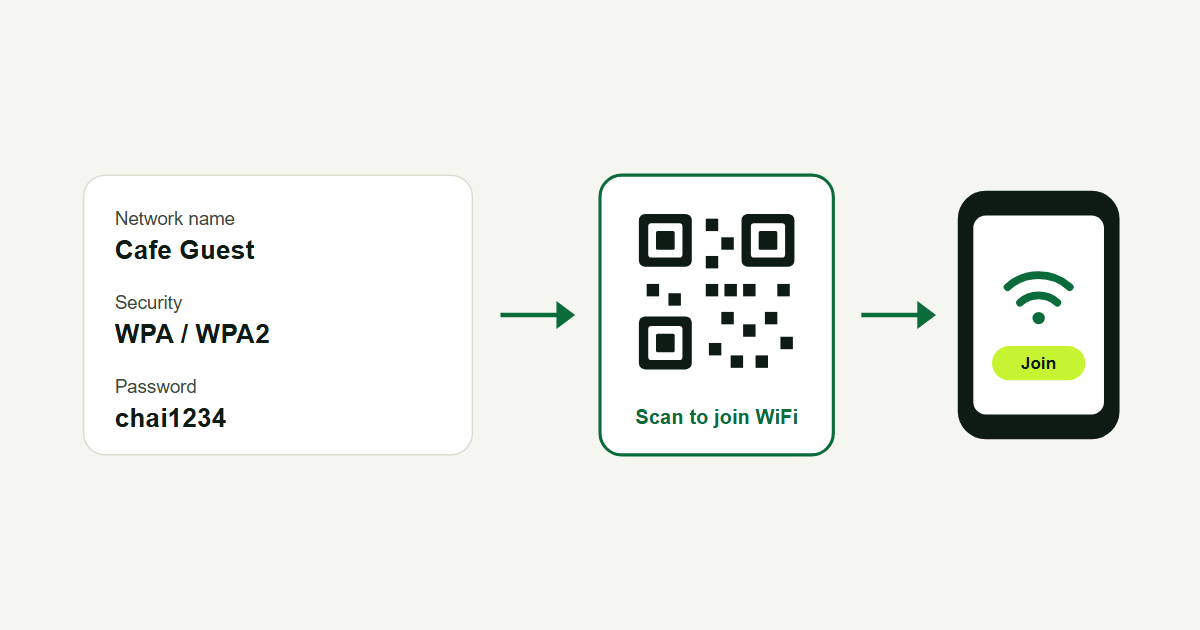
A WiFi QR code lets someone join your network by pointing their phone camera at it. They don't need to type the network name or a long password. Shops, cafes, clinics, hostels and offices print one near the counter, and families stick one on the fridge. This guide shows how to create a WiFi QR code for free, how to scan one on Android and iPhone, and what to watch for so you don't give your password away to the wrong people.
What a WiFi QR code contains
A WiFi QR code is a small piece of text that phones understand. It holds three things: the network name, the security type and the password. Written out, it looks like this:
WIFI:S:Cafe Guest;T:WPA;P:chai1234;;When a phone camera reads this, it offers to join the network Cafe Guest with the password chai1234. Nothing goes through a website, so the code works even when the person has no mobile data.
How to create a WiFi QR code for free
You can make one on our free QR code generator without an account:
- Open the generator and pick the WiFi tab.
- Type the Network SSID. This is the WiFi name exactly as it appears on your phone, including capital letters and spaces.
- Type the password. Leave it empty if your network is open and has no password.
- Choose the encryption. Pick WPA for WPA and WPA2 networks, which covers almost every home and shop router sold in recent years. Pick WEP only if your router is very old and set to WEP.
- Generate the code and download it as SVG, PNG or WebP.
Test it with two different phones before you print it. If a phone says it can't connect, the name or password has a typo, so check capital letters first.
Make it from your phone settings instead
Most phones can show a WiFi QR code for a network you're already connected to. On many Android phones you open Settings, go to Network and internet, tap your network and tap Share. Google explains the steps in Connect to Wi-Fi networks on your Android device. Menu names differ between Samsung, Xiaomi, Oppo, Vivo and other brands. This is handy for sharing once, face to face. For a printed sign, a downloaded code is easier because you can size it and add it to a design.
How to scan a WiFi QR code
- iPhone: open the Camera app and point it at the code. Tap the WiFi banner that appears, then tap Join. Apple covers this in Scan a QR code with your iPhone camera.
- Android: open the Camera app or Google Lens and point it at the code, then tap the network name to connect. On some phones the scanner is inside the WiFi settings screen, next to Add network.
Hold the phone about 20 to 30 cm away and make sure the whole code is in view. A code that's very small, shiny or creased can be slow to read.
Keep your WiFi password safe
A WiFi QR code is a static code. The password sits inside the code itself, so:
- Anyone who photographs the sign can join later, from outside your shop if the signal reaches.
- A free QR scanner app can show the password in plain text. A QR code makes joining easier; it doesn't hide the password.
- If you change the password, the old code stops working and you need to print a new one.
The simple fix is a guest network. Most routers can run a second network with its own name and password, kept apart from the computers and cameras you use for the business. Put the guest network in the QR code and keep the main password to yourself. Change the guest password every few months and print a new code when you do.
Where to put a WiFi QR code
- Cafes and restaurants: on the table tent, the menu or the counter, so customers stop asking for the password.
- Clinics and salons: in the waiting area, next to the reception desk.
- Guest houses and hostels: inside each room and at check-in.
- Offices: in the meeting room, for visitors only, on the guest network.
- Home: on the fridge or near the router, so guests and relatives can join quickly.
Write a short line under the code, such as "Scan to join our WiFi", plus the network name. People trust a code more when they know what it does, and it gives them a backup if their camera won't scan.
Printing tips
- Print the code at least 3 cm wide for a table card and larger for a wall sign that people scan from a distance.
- Keep dark modules on a light background. Light codes on dark backgrounds fail on some phones.
- Leave a clear margin around the code; don't let a border or text touch it.
- Use the SVG download for print shops. It stays sharp at any size.
For more ideas on QR codes in a shop, read QR code for business: uses, tips and how to make one free.
Frequently asked questions
Is a WiFi QR code free?
Yes. Making one on the Lnky QR generator is free and doesn't need an account, and it keeps working for as long as your network name and password stay the same.
Does a WiFi QR code need internet to work?
No. The phone reads the network name and password straight from the code, so it can join even with no mobile data.
Can I see how many people scanned my WiFi QR code?
No. WiFi codes are static, which means the phone joins your network directly and nothing passes through a server that could count scans. Your router's admin page can show how many devices are connected.
Can someone get my WiFi password from the QR code?
Yes, anyone who scans it with a QR reader app can see the password. Use a separate guest network for the code and keep your main password private.
What do I do after changing my WiFi password?
Make a new code with the new password and replace the old printouts. The old code will fail to connect.
.png)