

Most phones can scan a QR code with the camera that's already on them, so you don't need to download a scanner app. This guide shows how to scan a QR code on Android and iPhone, how to scan one from a screenshot or picture, how to scan on a computer, and what to do when a code won't scan. It ends with a few safety checks worth doing before you open any link from a code.
How to scan a QR code on Android
- Open the Camera app.
- Point it at the QR code so the whole code is on screen. Hold still for a second.
- Tap the link or banner that appears.
The built-in camera scans QR codes on Android 9 and newer, as Google notes in Troubleshoot QR code scanning with your phone's camera. On some Samsung, Xiaomi, Oppo, Vivo and Infinix phones you may need to turn on QR scanning in the camera settings first, or use the scanner in the quick settings panel when you swipe down from the top.
Scan with Google Lens or Chrome
If your camera doesn't react, use Google Lens. It's in the Google app and in Chrome: open a new tab, tap the Lens icon in the search bar, point the camera at the code and tap the link that appears. Google describes this in Search with Google Lens in Chrome.
How to scan a QR code on iPhone
- Open the Camera app and use the back camera.
- Point it at the code until a link banner appears.
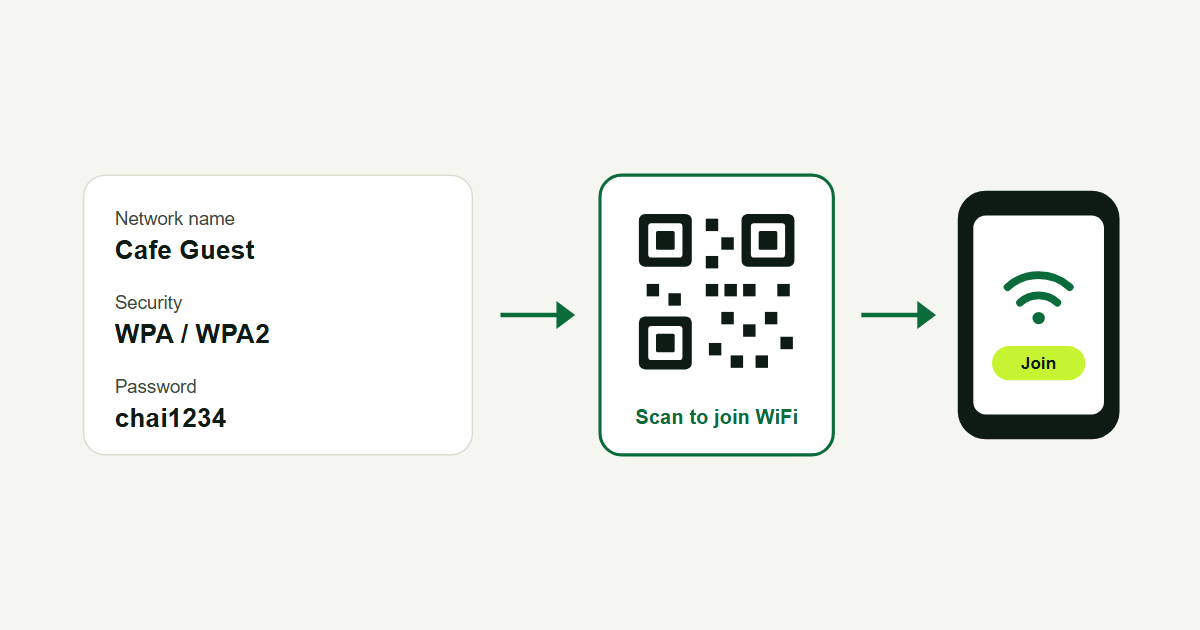
- Tap the banner to open the link, join the WiFi network or add the contact.
Apple covers this in Scan a QR code with your iPhone camera.
How to scan a QR code from a screenshot or picture
Sometimes the code is on your own screen: a screenshot, a photo someone sent on WhatsApp, or a PDF. You can't point your camera at your own screen, so use Google Lens on the image:
- Android: open the picture in Google Photos or your gallery and tap the Lens button, or open the Google app, tap the Lens icon and choose the picture from your gallery.
- iPhone: install the Google app, tap the Lens icon and pick the picture from your photos.
Lens reads the code and shows the link, the same as scanning it with the camera.
How to scan a QR code on a laptop or computer
Laptop webcams aren't good at scanning, so the easiest way is your phone. If the code is on your computer screen, point your phone camera at the screen. If you only have the computer, open the image in Chrome, right-click it and choose to search the image with Google Lens; the link from the code shows in the side panel.
Scanning QR codes inside WhatsApp
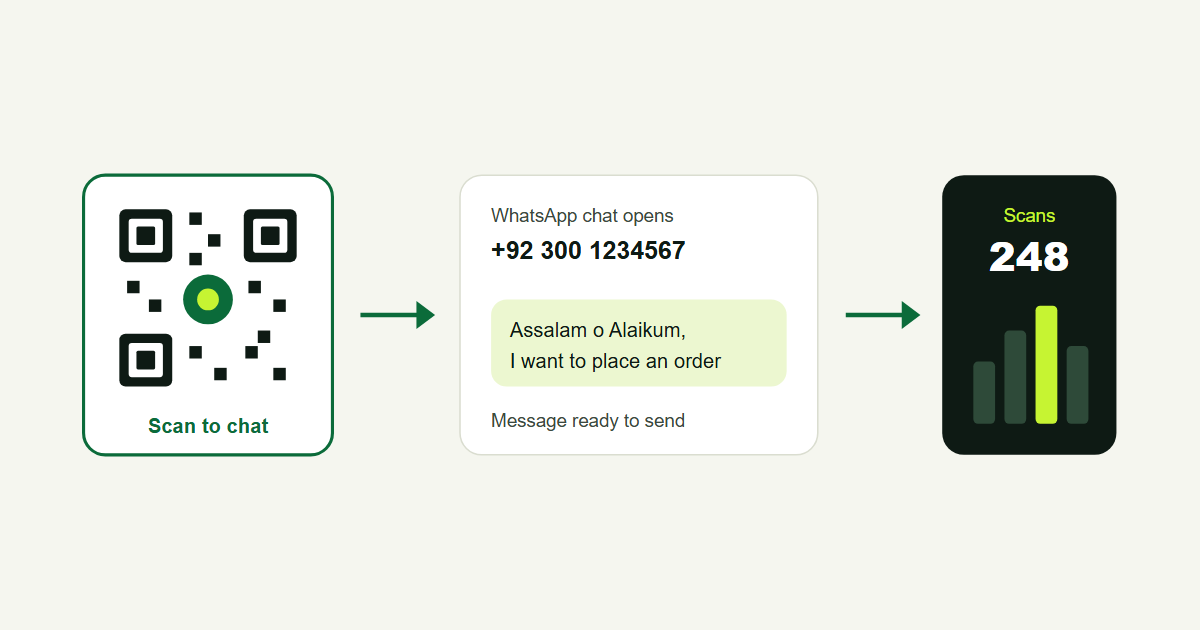
To add someone on WhatsApp from their personal QR code, open WhatsApp, go to Settings, tap the QR code icon and choose Scan. A QR code that opens a WhatsApp chat, like the ones on shop counters and packaging, scans with the normal phone camera. Our guide on the WhatsApp QR code explains both kinds.
Why a QR code won't scan
- Distance: move the phone closer or further away. For a small code on a card, 15 to 20 cm usually works.
- Light and glare: scan in good light and tilt the phone slightly if the code is on shiny paper or behind glass.
- Dirty lens: wipe the camera lens. Fingerprints blur the code.
- Damaged code: a creased, torn or faded print may not scan. Ask for a fresh copy.
- Low contrast: light codes on dark backgrounds, or very pale colours, are hard for some phones to read.
Stay safe when scanning QR codes
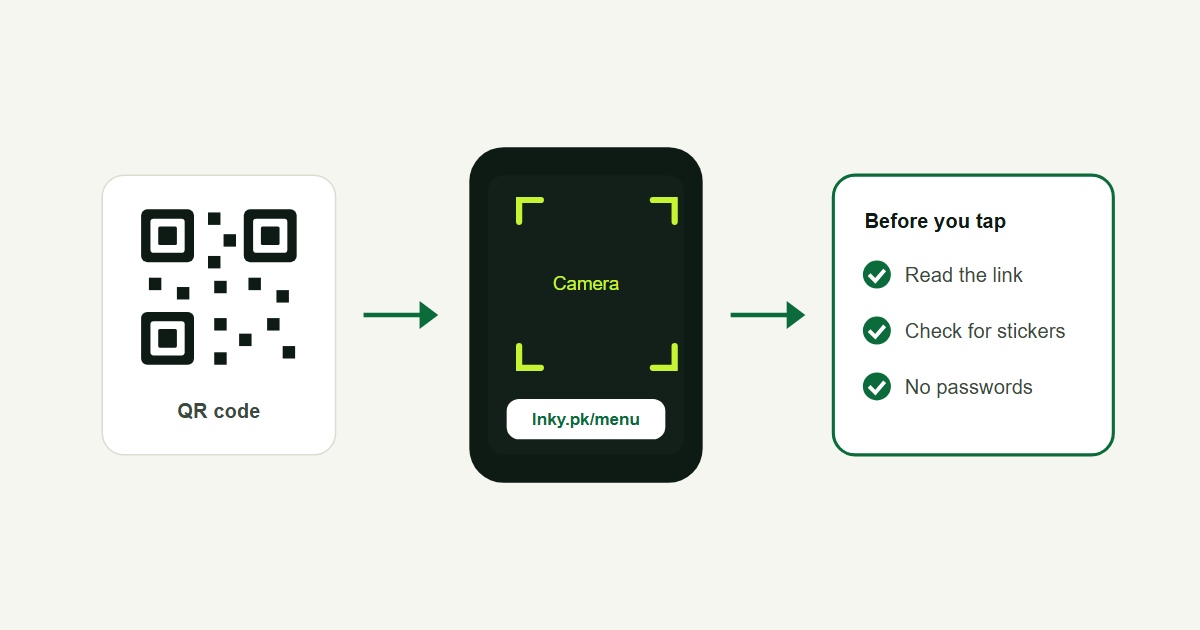
A QR code is just a link you can't read until you scan it, and scammers use that. Before you tap:
- Read the link in the banner. If it doesn't match the business, or looks like a random string on an unknown website, don't open it.
- Check for stickers. On parking meters, posters and payment counters, scammers sometimes stick their own code over the real one.
- Don't enter passwords or card details on a page you reached from a code unless you're sure it's the real site. Open the bank or shop app yourself instead.
- Be careful with codes sent by strangers, especially ones that claim a prize, a parcel problem or an urgent payment.
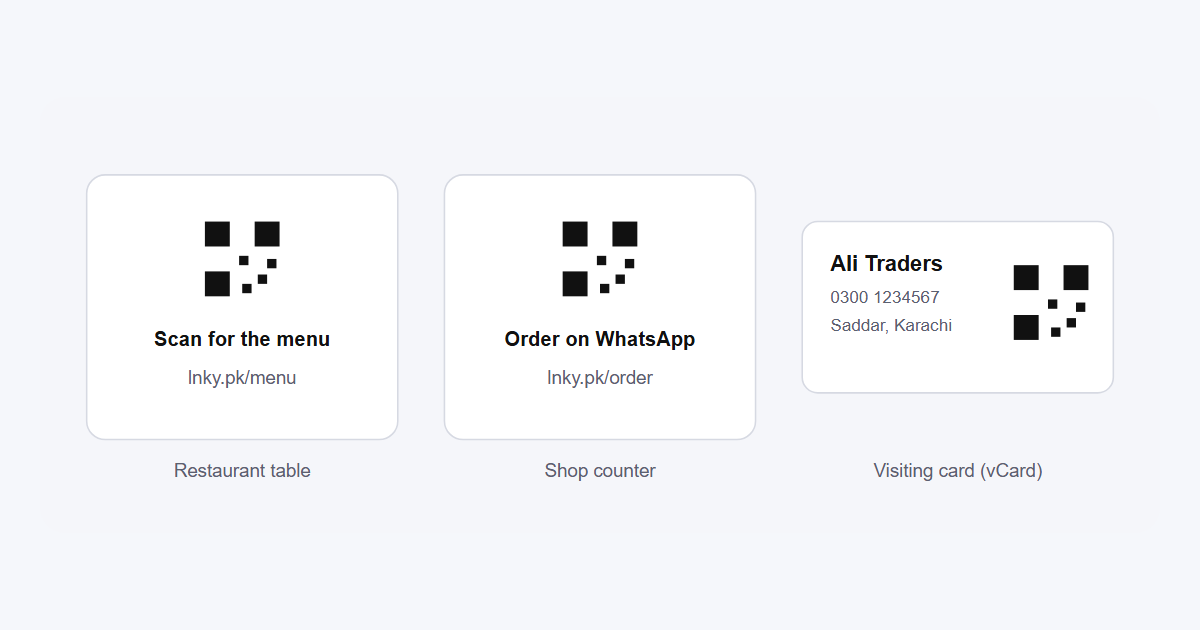
For businesses, the other side of this is trust. Customers scan more when the code says what it does, for example "Scan to order on WhatsApp", and when the link shows your own name. A short branded link, such as lnky.pk/yourshop, looks far safer than a long unknown address.
Make your own QR code
You can create a QR code for a link, WiFi, contact card, email, SMS, phone call or event on our free QR code generator, without an account. With a free Lnky account you can also make dynamic QR codes that show how many people scanned them and can be changed after printing. For ideas, read QR code for business and our guide to the WiFi QR code.
Frequently asked questions
Do I need an app to scan a QR code?
Usually not. The camera app on iPhone and on Android 9 or newer reads QR codes. If yours doesn't, Google Lens in the Google app or Chrome does the same job.
Can I scan a QR code from a screenshot?
Yes. Open the screenshot with Google Lens, from Google Photos or the Google app, and it reads the code from the picture.
Is it safe to scan any QR code?
Scanning itself is safe; the risk is the link it opens. Read the link before you tap it and never enter passwords or card details on a page you don't trust.
Why is my phone not scanning a QR code?
Check the distance, light and lens first. If it still fails, turn on QR scanning in your camera settings or use Google Lens instead.
.png)